

Adding Knowledge to Mates
The "Knowledge" feature in GPT Mates allows you to enhance the intelligence of both Native and Assistant Mates by providing them with additional information in the form of files. These files can be of various types (text documents, presentations, images, audio, video, etc.) and are used by the Mates to better understand the context of conversations, respond more accurately and appropriately, and perform more complex tasks.
Adding Files via Conversation
Users can provide files to Mates directly during a conversation using the attachment icon.
- Click the attachment icon in the message input bar.
- Select one or more files from your device.
- A quick, multi-colored animation indicates that the first step of file preparation is in progress. At this point, the file is not yet usable by the Mate.
- Once this first step is complete, the multi-colored animation will start rotating slowly, indicating that file optimization is in progress.
- The files are processed in real-time to extract text and relevant information.
- Mates use this information to answer questions and perform requested tasks.

Example of adding files via conversation
Managing Files via the "Knowledge" Interface
Users can manage a Mate's "Knowledge" files via the "Knowledge" tab in the Mate's settings.
- Access the Mate's settings by clicking on the "Manage Mates" button in the left menu, then select "Organization's Mates" and click on the Mate you want to manage.
- Navigate to the "Knowledge" tab.
- Users can add, delete, or modify files associated with a Mate.
- Files added via the "Knowledge" interface are available for all conversations with that Mate.
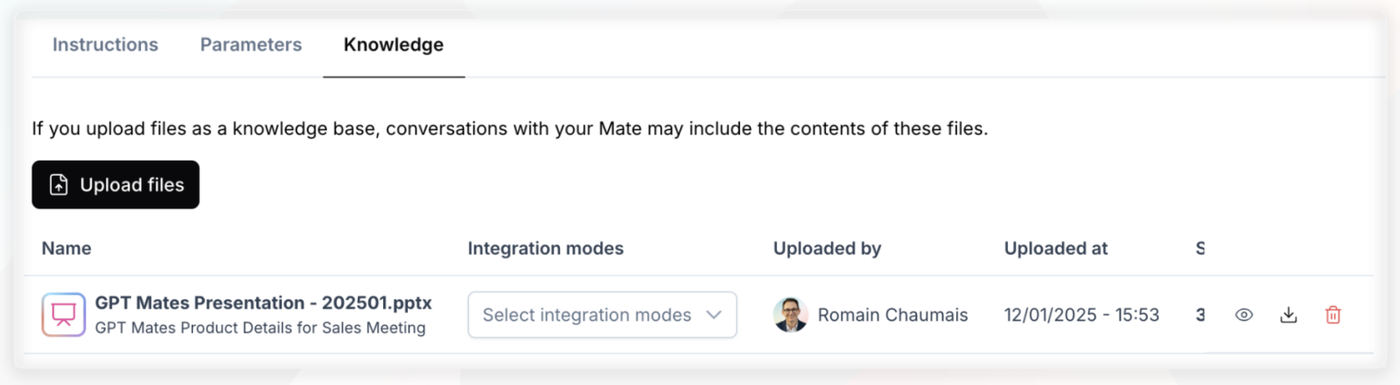
Example of managing files via the Knowledge interface
Supported File Types
GPT Mates supports a wide variety of file types, including:
- Text documents: .txt, .pdf, .docx
- Presentations: .pptx
- Spreadsheets: .xlsx, .csv
- Images: .jpg, .png, .gif
- Audio: .mp3, .wav
- Video: .mp4, .mov
- Code: .code, .json
File Processing and LLM Selection
- Files are automatically transformed to be usable by Mates.
- Text documents are extracted and converted to Markdown.
- Presentations are converted to PDF, and then each page is transformed into an image.
- Images, audio, and video are processed to extract relevant information.
- This transformation process allows for multiple versions of the document, and the best version is selected based on the capabilities of the Mate's LLM.
- Mates use different language models (LLMs) to process information.
- Each LLM has different capabilities in terms of the types of files it can process.
- GPT Mates automatically selects the best version of the file based on the LLM used by the Mate.
The diagram below illustrates the transformation process for a PPTX file:
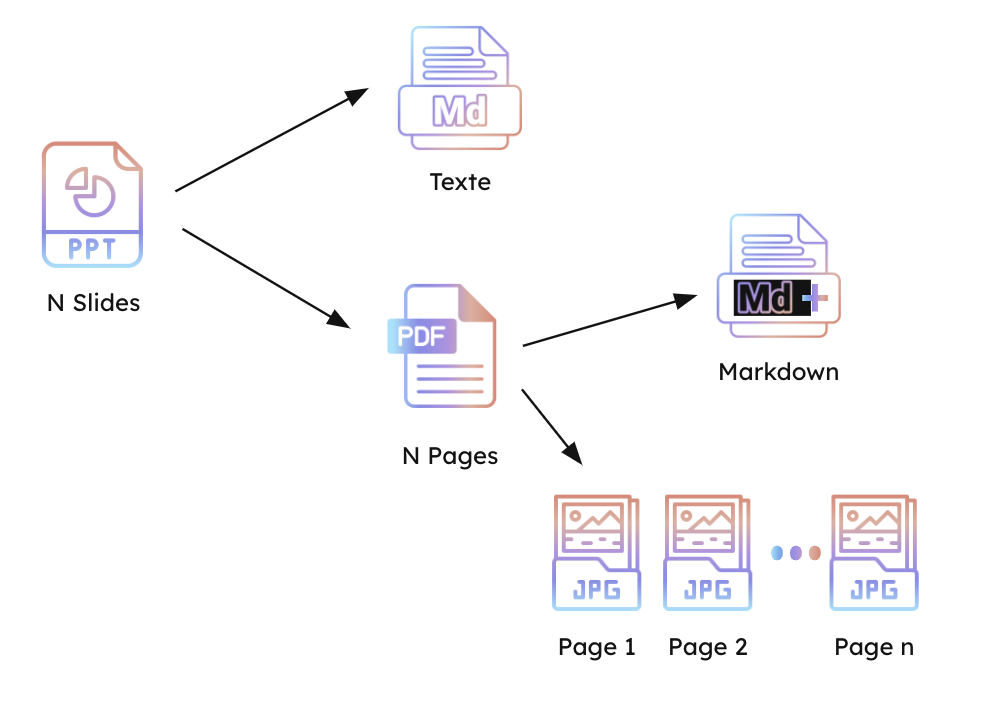
Transformation process of a PPTX file. The PPTX file is converted into a simple Markdown text, a PDF document, an enhanced Markdown document, and a series of images (JPG).
The matrix below details how files are adapted to each LLM. Please note that this matrix is subject to change based on updates to the language models.
| Mime Type | GPT4o | GPT4o Mini | Gemini Pro | Gemini Flash | Claude Sonnet | Claude Haiku | Llama 3.x | Mistral Large | Mistral Nemo | Pixtral |
|---|---|---|---|---|---|---|---|---|---|---|
| MS Document | Images | Images | Images | Images | Markdown | Markdown | Markdown | Images | ||
| MS PowerPoint | Images | Images | Images | Images | Markdown | Markdown | Markdown | Images | ||
| Images | Images | Images | Markdown | Markdown | Markdown | Images | ||||
| MS Excel / CSV | Markdown | Markdown | Markdown | Markdown | Markdown | Markdown | Markdown | Markdown | Markdown | Markdown |
| Text File | Markdown | Markdown | Markdown | Markdown | Markdown | Markdown | Markdown | Markdown | Markdown | Markdown |
| Audio / Video | - | - | Audio / Video | Audio / Video | - | - | - | - | - | - |
| Code File | Raw Text | Raw Text | Raw Text | Raw Text | Raw Text | Raw Text | Raw Text | Raw Text | Raw Text | Raw Text |
Note: This matrix is subject to change based on updates to the language models.
Security and Confidentiality
- Files are processed securely and confidentially.
- Files added via the "Knowledge" interface are only accessible to the Mate they are associated with.
- Files added via conversation are accessible to all Mates present in the conversation.
Limitations and Best Practices
While the "Knowledge" feature offers many possibilities, it is important to be aware of certain limitations and follow some best practices for optimal use:
- File Size: The file size is limited to ensure platform performance. It is recommended not to exceed 50 MB per file.
- File Types: Although GPT Mates supports many file types, some specific formats may not be supported. Please refer to the list of supported file types for more information.
- File Quality: The quality of the Mates' responses depends on the quality of the information contained in the files. It is recommended to provide clear, precise, and well-structured files.
- Confidentiality: The files you provide to the Mates are treated confidentially. However, it is important not to share sensitive or confidential data if you are unsure of their use.
- Wait for Optimization: To maximize the use of files by the Mates, it is advisable to wait until the slow optimization animation is complete before sending the file in a conversation.
- Use of Multiple Files: You can provide multiple files to a Mate, but it is recommended not to overload the Mate with too many files at once.
- Updating Files: If you modify a file, it is recommended to reload it so that the Mate uses the latest version.
Usage Examples
The "Knowledge" feature can be used in many ways to enhance your interactions with Mates. Here are some concrete examples:
- Enriching the context of a conversation: You can provide a presentation document of your company to a Mate so that it better understands your business and objectives. This will allow it to respond more relevantly to your questions.
- Giving a Mate specific expertise: You can provide a market study to a Mate so that it becomes an expert in this field. It will then be able to give you advice and analysis based on this study.
- Providing step-by-step instructions: You can provide a step-by-step guide to a Mate so that it can help you perform a specific procedure.
- Using a knowledge base: You can provide a knowledge base to a Mate so that it can answer questions from your customers or collaborators.
- Analyzing complex documents: You can provide a long document to a Mate so that it extracts the relevant information and summarizes it for you.
- Translating documents: You can provide a document in one language and ask the Mate to translate it into another language.
- Transforming documents: You can provide a document in one format and ask the Mate to transform it into another format (for example, a document into slides).
These examples are just a glimpse of the possibilities offered by the "Knowledge" feature. Feel free to explore and experiment to discover new uses.