

Managing LLM Connections & Models
Introduction
Large Language Models (LLMs) are at the core of GPT Mates, powering the intelligent interactions and capabilities of your Mates. Effective management of these models is essential to ensure optimal performance, flexibility, and cost-efficiency. This section introduces the new features designed to streamline the management of LLM models, allowing administrators to have granular control over their use and to adapt them to the specific needs of the organization. These enhancements include the introduction of logical models, the ability to manage provider connections and the option to set default LLM models for different Mate types.
How-to Video: Managing LLM Models in GPT Mates
Learn how to create connections, define logical models, and set default models.
Understanding Logical Models
Logical models are a new concept introduced in GPT Mates to provide a more flexible and manageable way to utilize Large Language Models (LLMs). Instead of directly assigning physical models to Mates, you now work with logical models, which act as an intermediary layer.
A logical model is created by combining two key components:
- Provider Connection: This is the connection to a specific LLM provider, such as OpenAI, Anthropic, Google Vertex AI, Azure, Mistral, OpenRouter. It includes the necessary authentication details and settings to access the provider's services.
- Physical Model: This refers to the actual LLM model provided by the provider, such as GPT-4o, Claude 3 Sonnet, or Gemini 1.5 Pro.
By combining a provider connection and a physical model, you create a logical model that can then be assigned to your Mates. This approach offers several key benefits:
- Stability: Logical models provide a stable interface for Mates. You can update the underlying provider connection or physical model without impacting the Mates that rely on the logical model.
- Flexibility: You can easily switch between different providers and models, allowing you to adapt to changing needs and optimize for performance or cost.
- Central Management: Administrators can manage and configure all logical models from a centralized location, ensuring consistency and control over the LLM models used across the organization.
This decoupling of Mates from direct physical model assignments simplifies management, improves flexibility, and ensures more stable and consistent performance across your organization.
Managing Provider Connections
To leverage the capabilities of different Large Language Models (LLMs) within GPT Mates, you first need to establish connections to the respective providers. These connections enable your organization to access and utilize the models offered by providers such as OpenAI, Anthropic, Google Vertex AI, and Mistral.
Here’s how to create a connection to an LLM provider:
- Access Organization Settings:
- Click on the black downward arrow next to your organization's name at the top left of the screen.
- Select "Settings" from the drop-down menu.
- Navigate to the "Models management" Tab:
- Go to the "Models management" tab to manage the connections and models for your Mates.
- Go to the "Connections" Tab:
- Select the "Connections" tab within the "Models management" section.
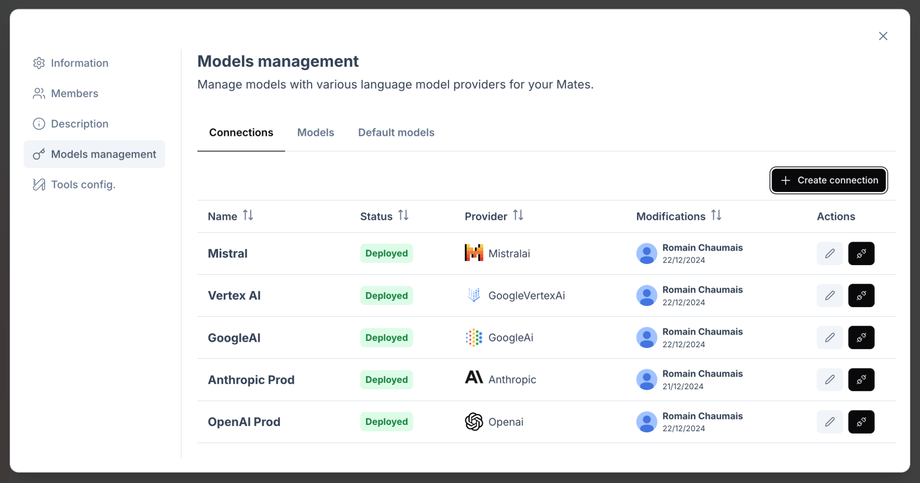
- Select the "Connections" tab within the "Models management" section.
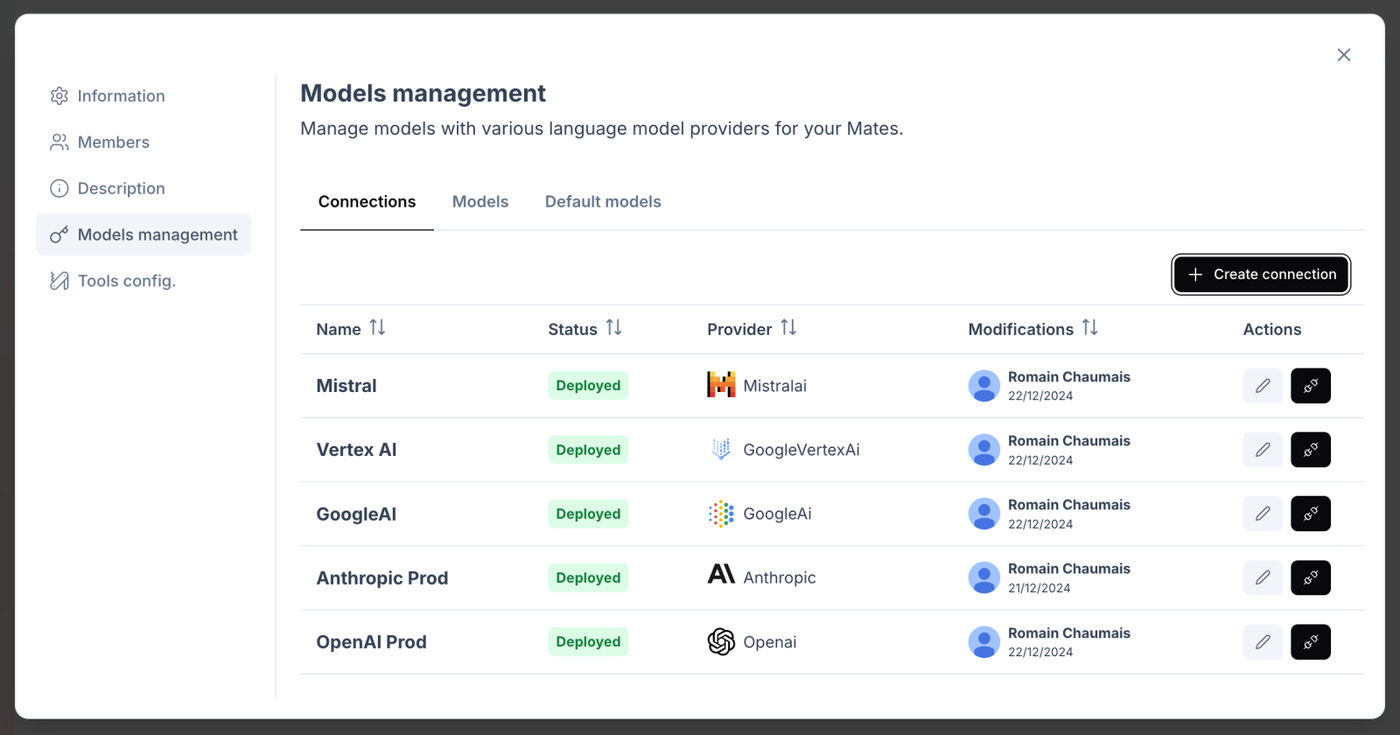
- Create a New Connection:
- Click on the "+ Create connection" button.
- Enter a descriptive name for the connection (e.g., "Anthropic Prod," "Google Gemini").
- Enter a description for the connection (e.g., "Direct Anthropic connection Production").
- Select the LLM provider you want to connect to from the "Provider" drop-down menu (e.g., OpenAI, Anthropic, Google Vertex AI, Mistral, Azure, etc.).
- Enter the required API key or credentials provided by the selected provider in the "API Key" field.
- Click "Save" to create the connection.
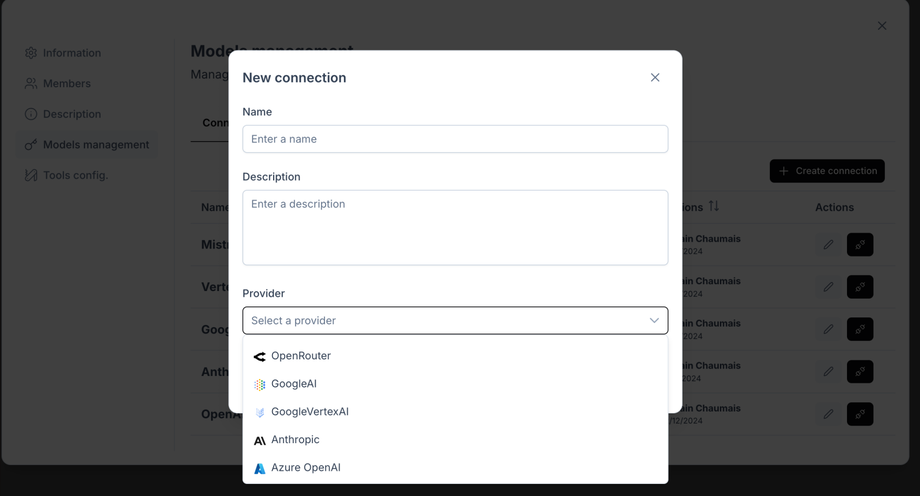
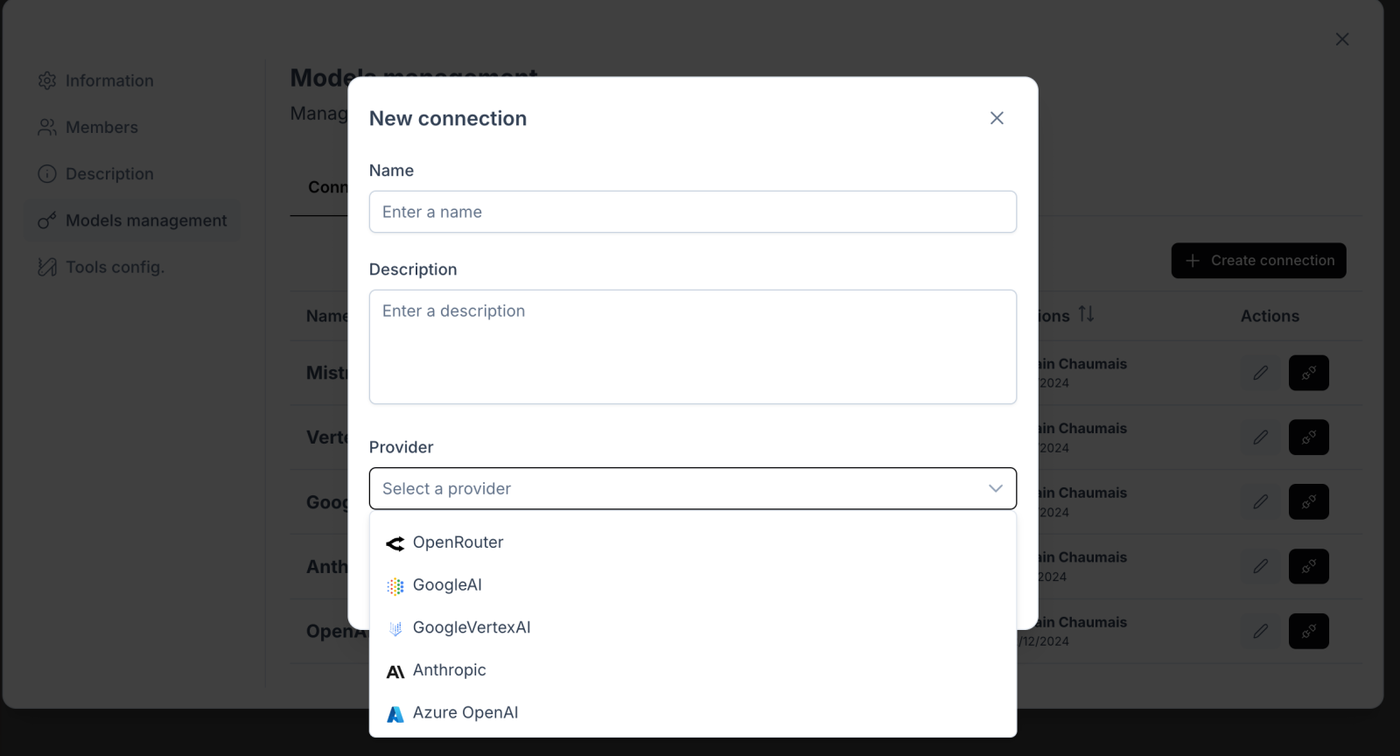
You can create multiple connections to the same provider or to different providers, allowing you to diversify your access to LLMs and optimize performance. This flexibility is particularly useful for exploring different models and ensuring redundancy in case one provider has issues.
Creating and Managing Logical Models
Once you have established connections to your LLM providers, you can then create and manage logical models. These logical models are what you will assign to your Mates, and they are built by combining a llm provider connection with a specific physical model.
Here’s how to create and manage logical models:
- Access the Organization Settings:
- Click on the black downward arrow next to your organization's name at the top left of the screen.
- Select "Settings" from the drop-down menu.
- Navigate to the "Models management" Tab:
- Go to the "Models management" tab to manage the connections and models for your Mates.
- Go to the "Models" Tab:
- Select the "Models" tab within the "Models management" section.
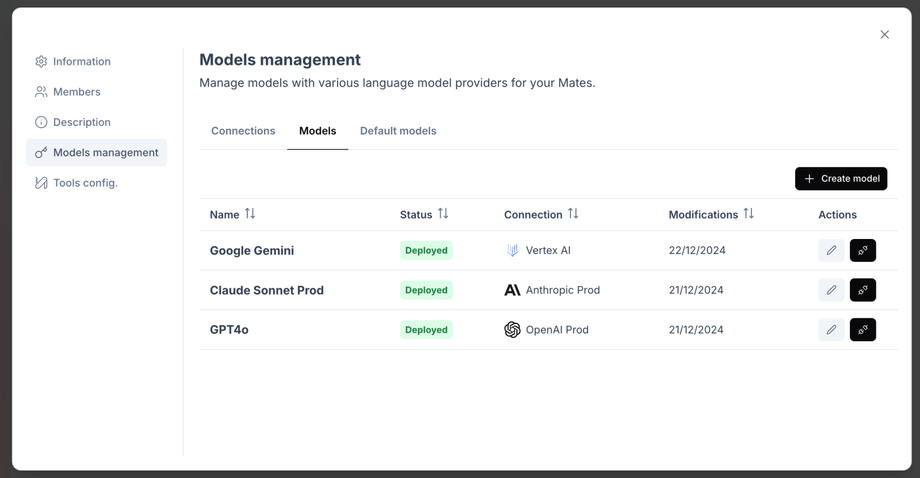
- Select the "Models" tab within the "Models management" section.
- Create a New Logical Model:
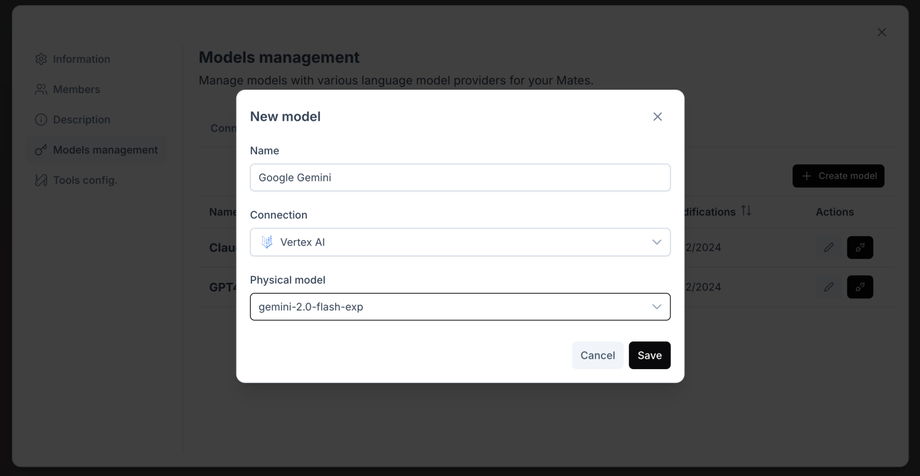
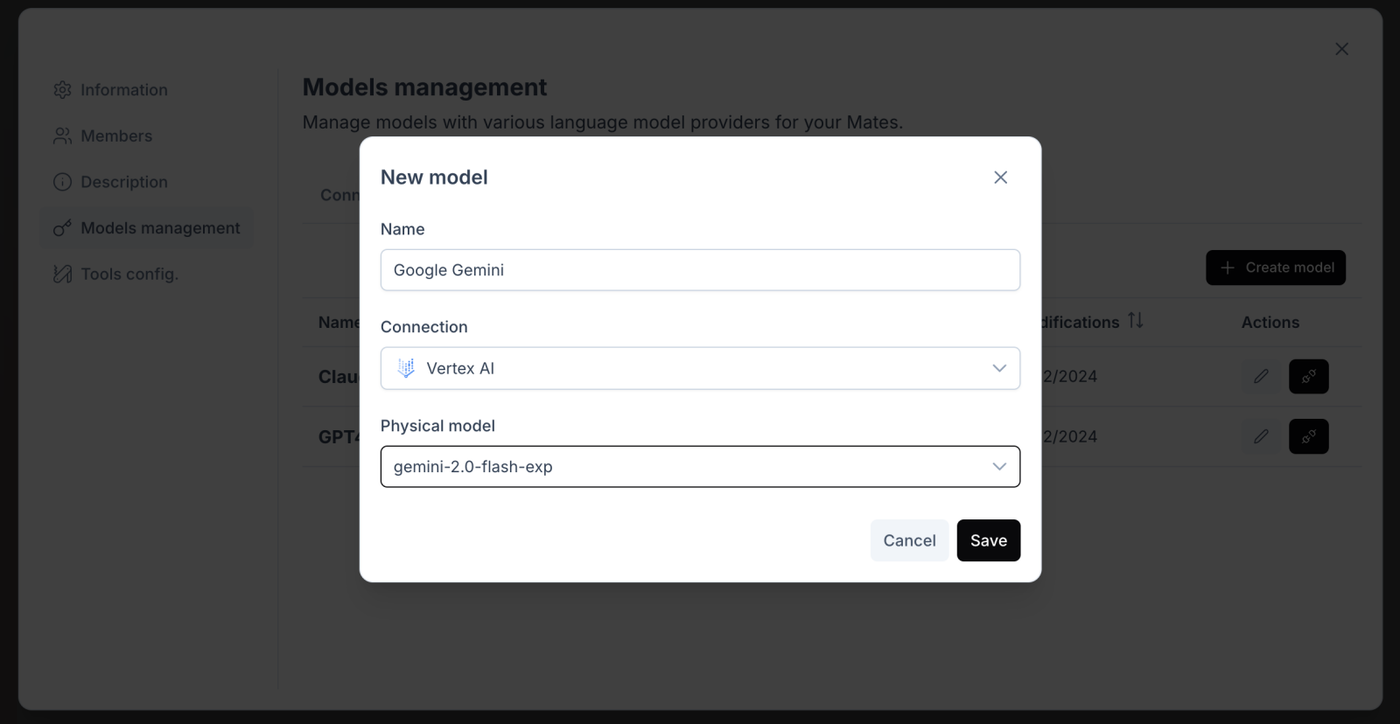
- Click on the "+ Create model" button.
- Enter a descriptive name for your logical model (e.g., "GPT4o," "Claude Sonnet Prod").
- Select the "Connection" you want to use for this logical model from the dropdown menu (e.g., "OpenAI Prod," "Anthropic Prod").
- Select the "Physical model" you want to use from the dropdown menu (e.g., "gpt-4o", "claude-3-sonnet-latest").
- Click "Save" to create the logical model.
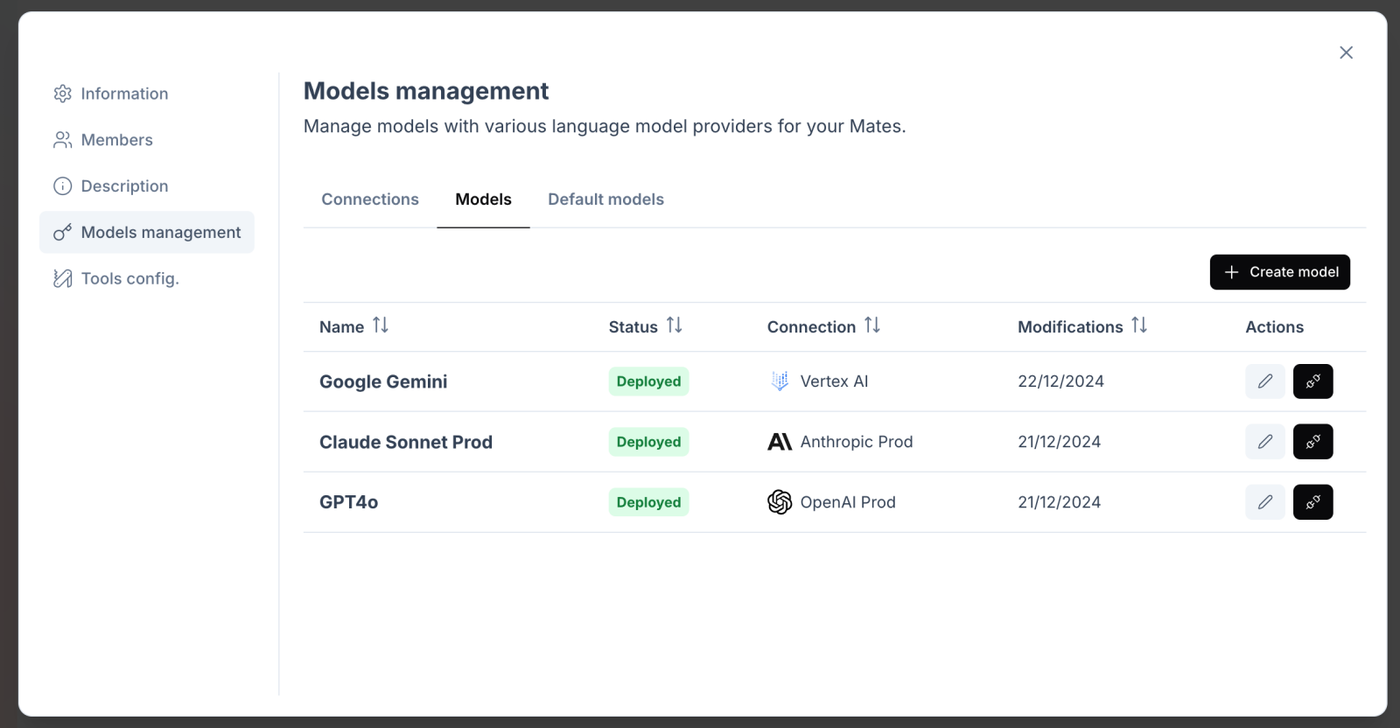
You can edit or delete existing logical models by clicking the edit or delete buttons on the right of a given model in the list.
By decoupling the Mates from direct physical model assignments, you gain the flexibility to update provider connections and physical models without impacting the behavior of the Mates that rely on the logical models. This approach also allows you to streamline the process of experimenting with different LLMs and identifying the best option for the different types of Mates in your organization.